Parking Gate Codes (V8)
This feature allows you to share gate codes through Claire's online check-in confirmation that can be sent by e-mail and/or SMS.
Currently, the parking Gate code is ONLY visible when they are using the outdoor locker from ACCES or Sharebox.
Access
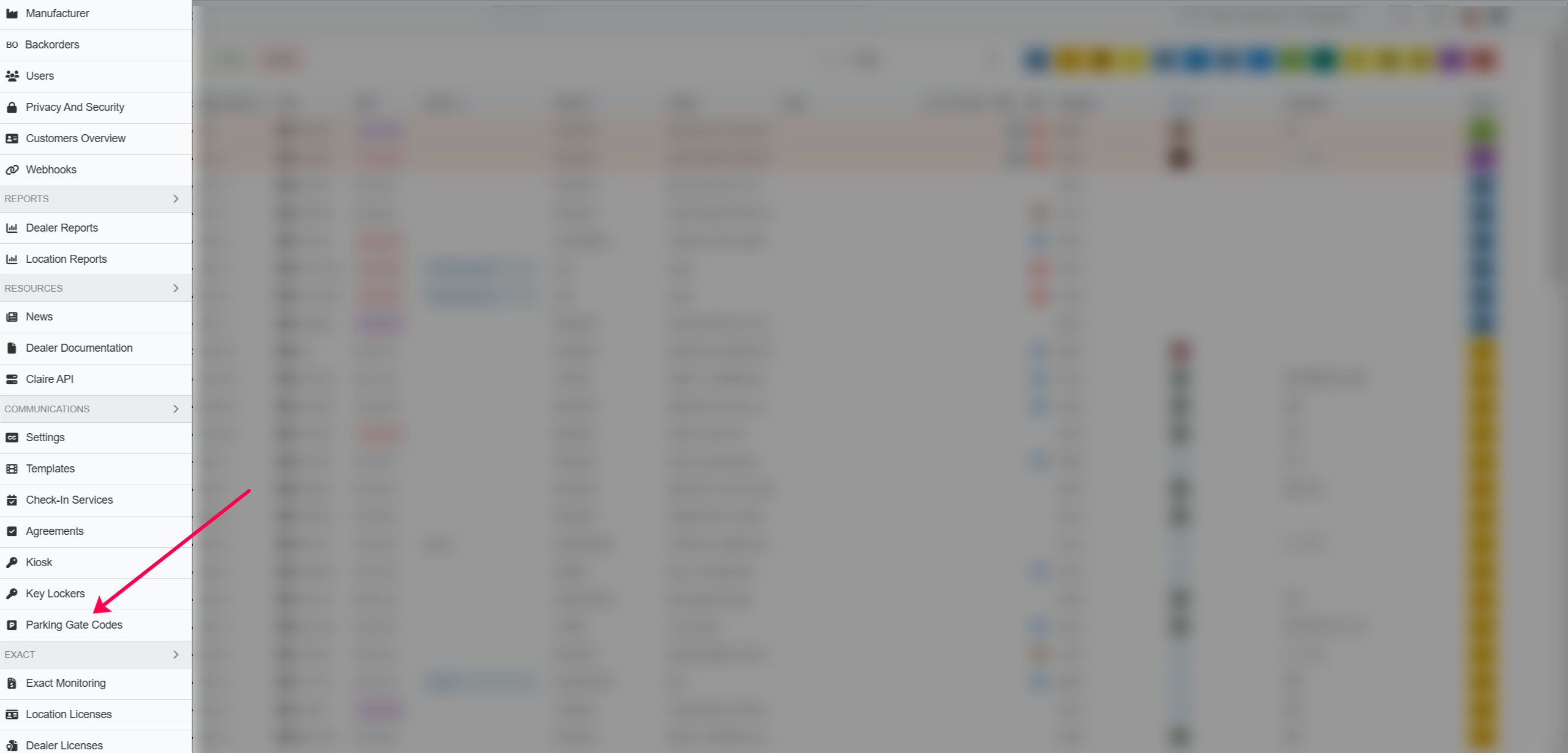
The menu is accessible in the customer communication settings page in the left menu:
Enable the setting: 'Send parking gate code in Online check-in'.
Parking Gate Codes Dashboard
In the menu below Communications click on Parking Gate Codes. The following dashboard will open:

Expired codes are cleaned up automatically.
Adding a code
Click the 'Add' button to create a new entry. A modal will appear containing the following fields:
- Start At – Select the start date using the date picker (field is pre-filled with today's date by default)
- End At – Select the end date using the date picker
- PIN – Enter the PIN code
Once all fields are filled in, click 'Save' to confirm, or 'Cancel' to discard the changes.
Please ensure that the date range is wider than the appointment date entered in Claire.

If the Start At is set to the same date as the customer's appointment, the customer will not be able to use the PIN code the day before their appointment. The same applies to the End Date - if the customer arrives a day after the set End At, the PIN code will no longer be valid.
Setting the Online confirmation template
Contact us at support@claireit.eu
Customer communication log
In the online check-in tab, it show that a gate pin code was sent but we do not show the code, just a sentence "Parking gate code sent".
Related Articles
Setting Parking gate codes menu
This feature allows you to share gate codes through Claire's online check-in confirmation that can be sent by e-mail and/or SMS. Currently, the parking Gate code is ONLY visible when they are using the outdoor locker from ACCES or Sharebox. Access ...Logging in using QR code
Purpose Claire allows mechanics to log in to our web application using a QR code feature on their tablet. Steps Step 1 Open the workorder on tablet. Step 2 Select the green button (QR code scanner) indicated in the image below. Step 3 On the laptop ...Adding a Parking location note
This function allows you to manually add a note to indicate that a car is parked somewhere on the site. Accessing On the WO page, the button to access the parking location note feature will be located at the top right section as indicated by the red ...Connecting to Servicebox
To link Claire to a service box, it is important that you have your own Claire account and your own workplace number in the service box. If you do not have your own workplace number, you will need to apply for it at the IT department of the ...Using the search bar
In the searc h bar, you can search by different topics: By WO number By name of the owner or driver of the vehicle By registration number If you search this way, Claire will display all corresponding items for that day. You can also search in the ...